Automatic Page Numbering
by Ilene Strizver
How many times have you wanted to add automatic page numbering to a document, but didn’t know how and figured it was too complicated? Or manually added page numbers to a document and went crazy changing them when pages had to be added, deleted, or shuffled? Well, sweat no more, because automatic page numbering is available with most applications, and it’s quick and easy to set up. Here’s how:
In Adobe® InDesign® and QuarkXPress®, automatic page numbering is inserted via master pages. If you are not using them, create one just for this purpose and apply it to all the pages.
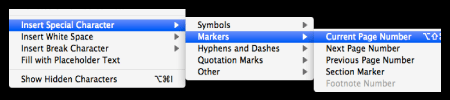
InDesign
- Open your master page
- Create a text frame on the master page where you want the page number to appear
- Then go to Type > Insert Special Character > Markers > Current Page Number. An A will appear, which is the placeholder for the folios
- You can then highlight the A and style the folios as desired, including the font, size, alignment, and so on
- If you have more than one master page, be sure to add the styled text box to them all, matching the position exactly
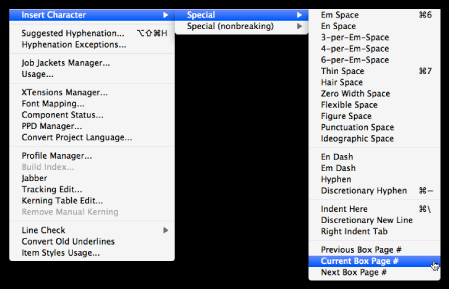
QuarkXPress
- Open your master page
- Create a text box on the master page where you want the page number to appear
- Go to Utilities > Insert Character > Special > Current Box Page #. A <#> will appear, which is the placeholder for the folios
- You can then highlight the # and style the folios as desired, including the font, point size, alignment, and so on
- If you have more than one master page, be sure to add the styled text box to them all, matching the position exactly
Microsoft® Word® and Apple® Pages® are word processing applications that are not intended for page layout and design, so inserting page numbers is much simpler.
Microsoft Word
- With the document open, go to Insert > Page Number. A dialog box will appear, where you can select the position and alignment. When you click the Format button, you can choose numerals, letters, Roman numerals, and so on, as well as other formatting details
- To change the font or styling of the page numbers, go to View > Header and Footer, and change it from there
Apple Pages
- Click the header or footer of the document, or wherever you want the page number to appear
- Go to Insert > Page Number, and a numeral will appear
- To format and style the page numbers, highlight the numeral and style as desired
Some rules for page numbering:
- Place numbers in the outer margin for best visibility
- Keep them at least one line space away from the body text for best visibility
- Feel free to add running information that can help the reader, such as the name of the article or chapter, or the volume and number

- Editor’s Note:Ilene Strizver, founder of The Type Studio, is a typographic consultant, designer and writer specializing in all aspects of typographic communication. She conducts Gourmet Typography workshops internationally. Read more about typography in her latest literary effort, Type Rules! The designer's guide to professional typography, 4th edition, published by Wiley & Sons, Inc. This article was commissioned and approved by Monotype Imaging Inc.